
How to Draw in Notion on iPad with an Apple Pencil
If you have an iPad, you likely want a unified "Notion drawing iPad" workflow. Here's exactly how to use your tablet for hand-written notes and sketches.
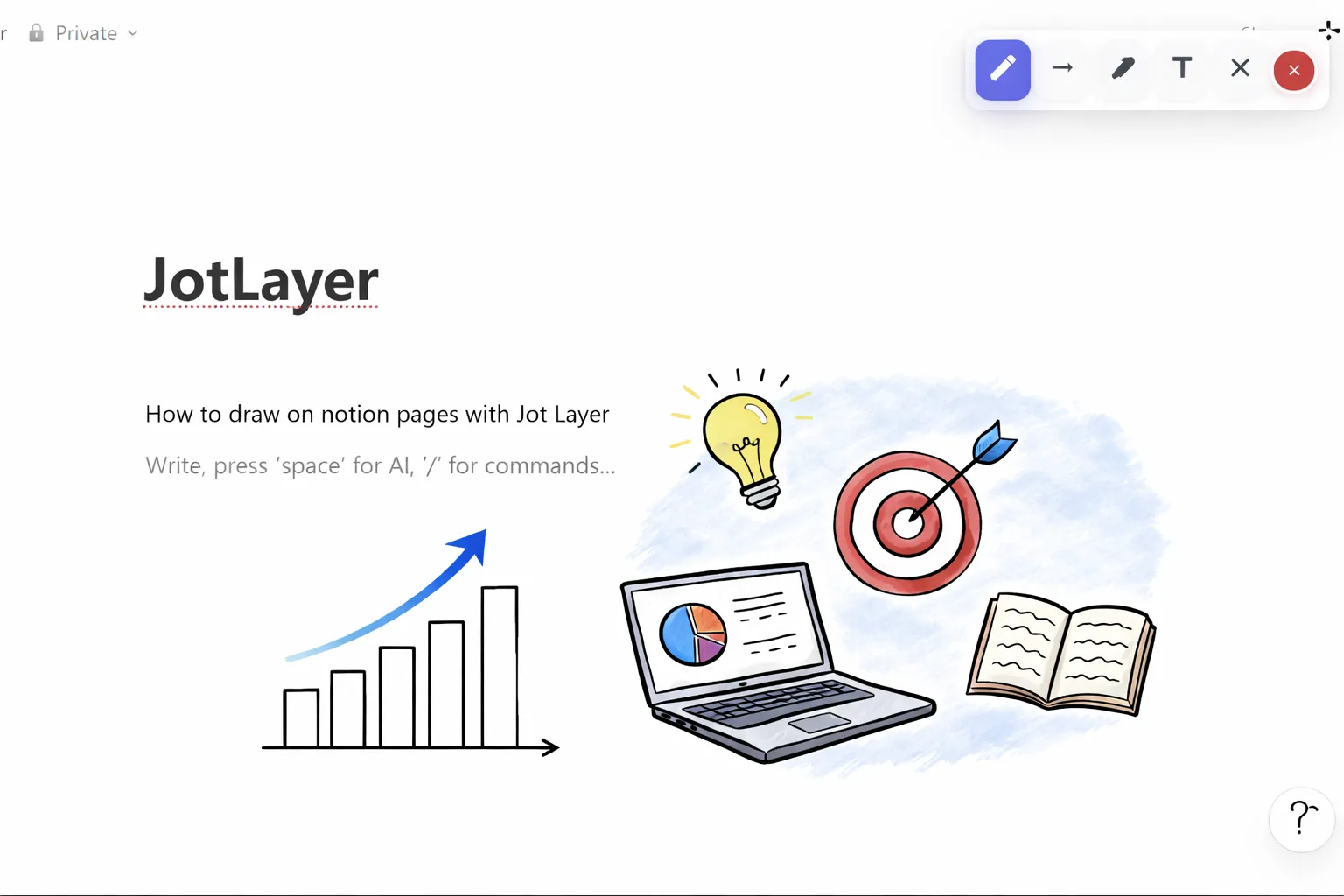
Millions of students and professionals use Notion for organization, but many switch to GoodNotes or Notability the moment they need to handwrite notes. If you want to consolidate everything into a single Notion drawing tablet setup, the good news is: you can.
While the official Notion iPad app does not currently feature a native freehand "notion draw with apple pencil" canvas block, you have two primary methods to get the job done.
Method 1: The Scribble Feature (Text only)
If your goal is just to write text with your stylus, Apple’s native Scribble feature works cleanly inside the Notion iOS app.
- Open Notion on your iPad.
- Tap inside any text block.
- Begin writing with your Apple Pencil.
- iPadOS will immediately convert your handwriting into Notion text blocks.
Note: This does not allow for drawing shapes, graphs, or visual mind maps. It only converts handwriting to typed text.
Method 2: True Drawing with JotLayer (Web)
If you want a genuine draw notion ipad experience where your ink stays visual, you should use JotLayer via a desktop-class browser.
Since JotLayer is a Chrome extension, it doesn't run inside the standalone Notion iOS app. However, if you are using a 2-in-1 device, a Chromebook stylus, or a Mac with a drawing tablet, JotLayer is by far the best way to physically annotate pages.
Start Drawing Today
Add the JotLayer extension to your Chrome browser securely and start sketching over your Workspace instantly.