
 New from JotLayer - SidePDF, free
The PDF note taker that writes next to the text, not on top of it.
SidePDF is a free Chrome extension for annotating PDFs. Widen any page's margin, then handwrite, highlight, type and draw in the space you just made - saved into the PDF itself, readable anywhere.
Also for Edge
Edge
- Free, no account
- Nothing is uploaded
- Works offline
- Saves into the same file
What annotating a PDF actually looks like
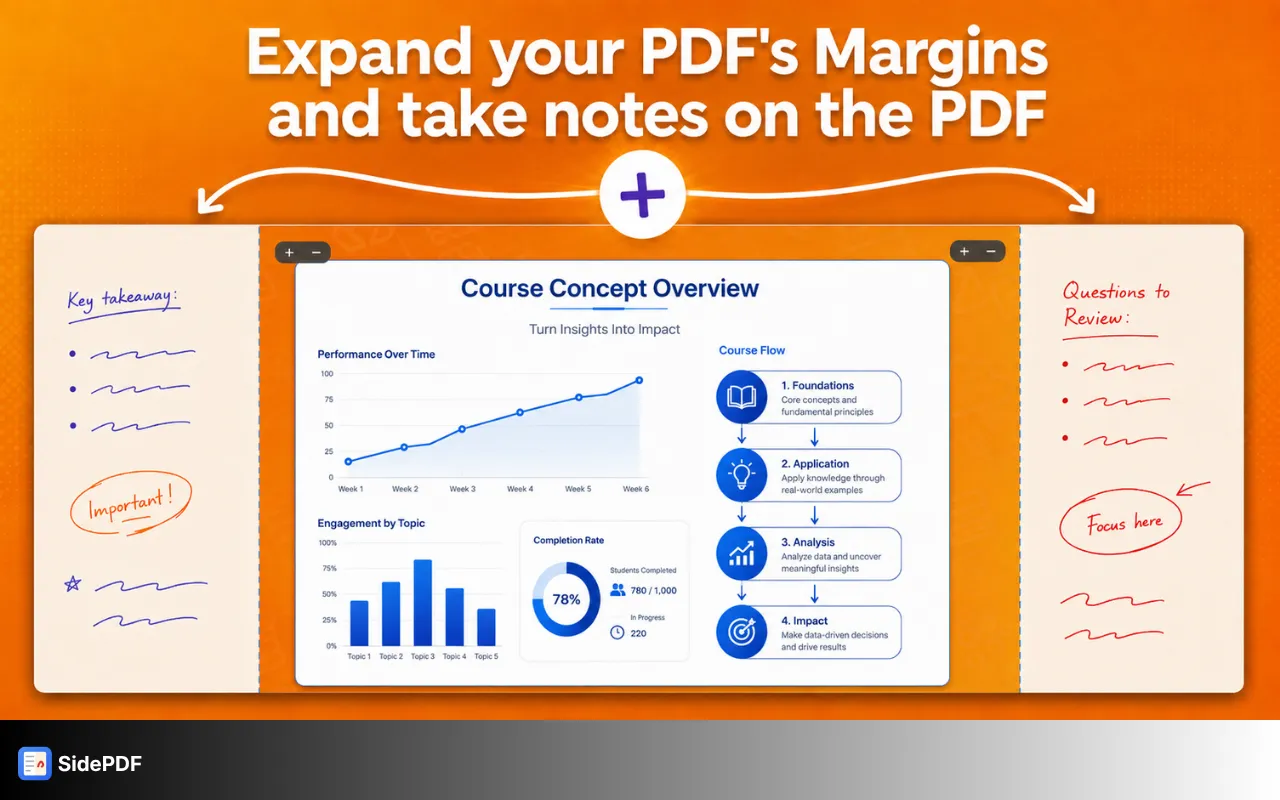
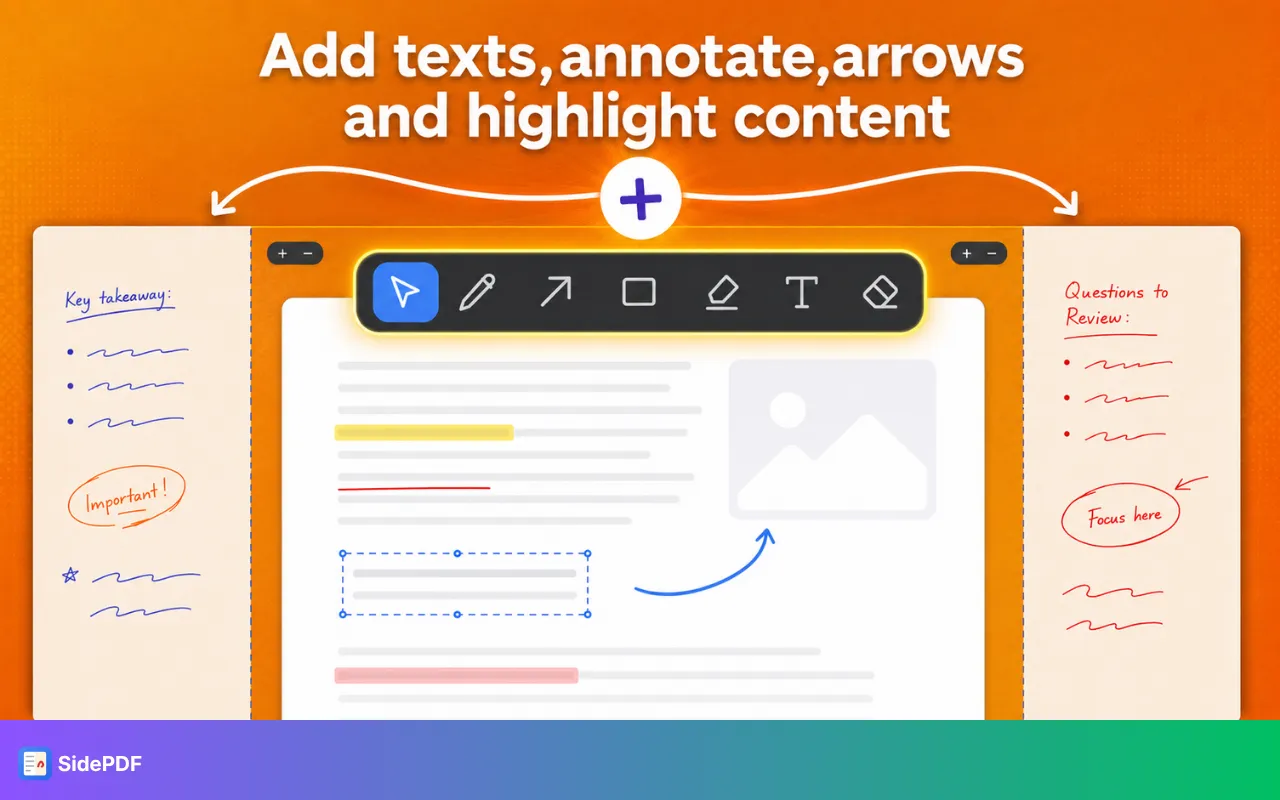
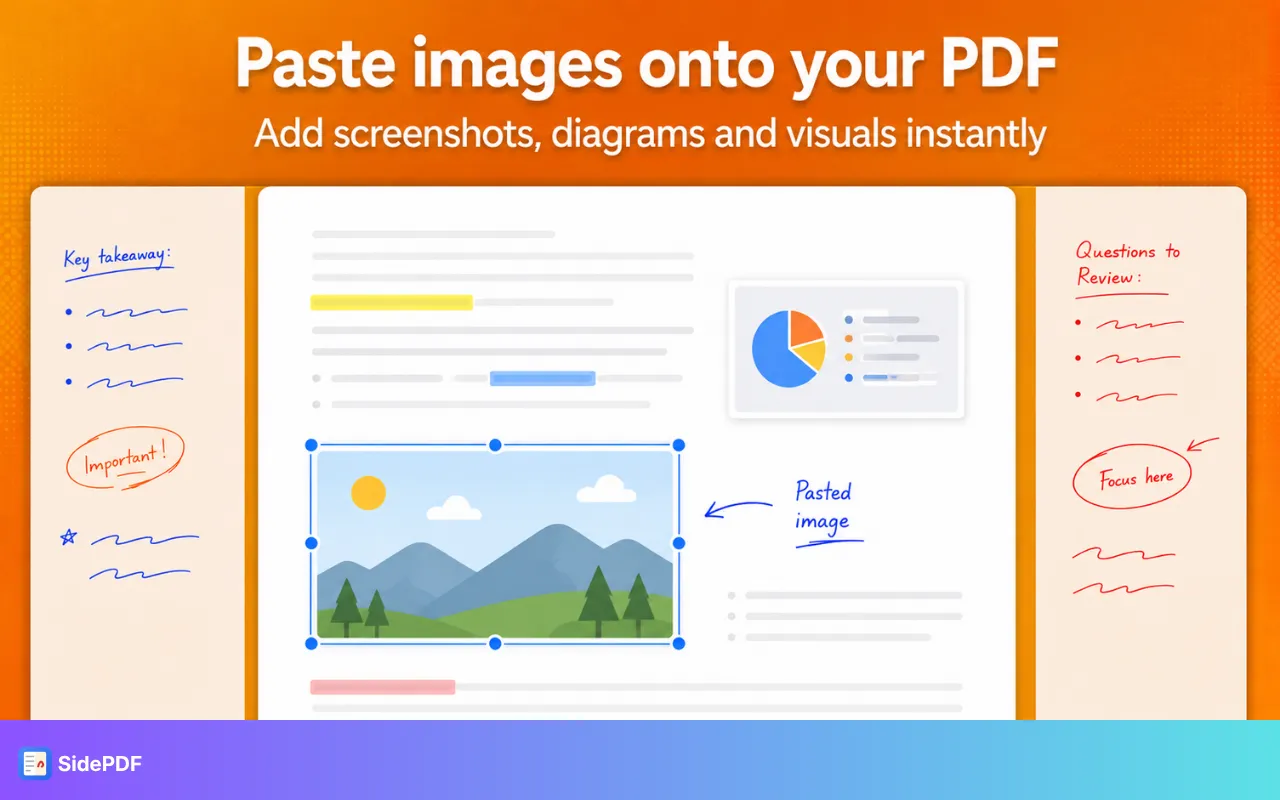
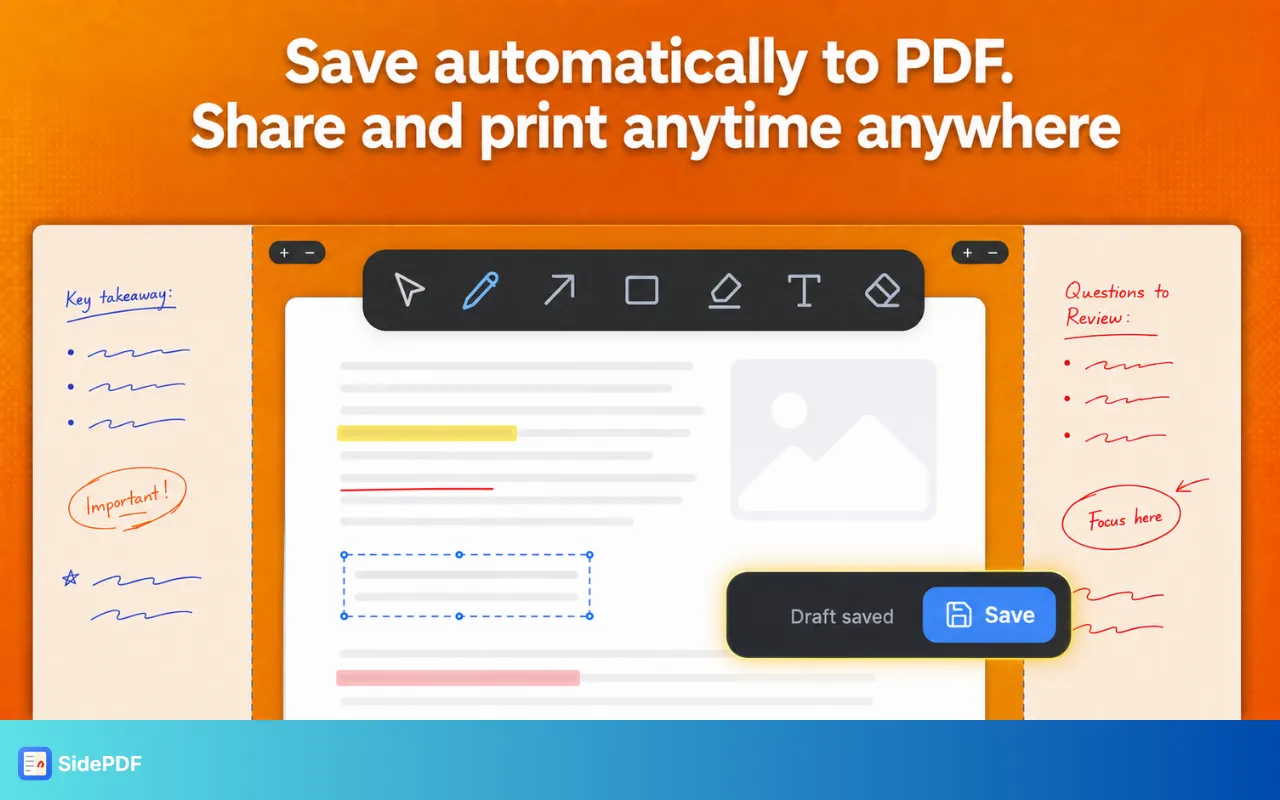
The workspace, the toolbar, and a marked-up page with notes in the margin.
Every other PDF annotator makes you write on the page
So you cram your thinking into whatever white space the author happened to leave, and it ends up on top of the very sentence you were reacting to. SidePDF makes the page wider instead.
- ✗ Notes sit on top of the words they refer to
- ✗ You run out of room in three sentences
- ✗ Or you copy the reading into a separate notebook
- ✓ Blank margin opens up - up to three page-widths per side
- ✓ The original page is untouched and still selectable
- ✓ Saved as real page geometry, readable in any PDF app
That space is not an overlay and not a sidebar. When you save, the PDF's actual page geometry is expanded, so the margin becomes a real part of the page. Open the file in Preview, Acrobat or on a phone and the notes are simply part of the document.
How to take Cornell notes on any PDF
A narrow cue column on the left for questions and keywords. The original page in the middle. A wide notes column on the right. No printing, no templates, no copying the reading into a separate notebook - source and thinking on the same page.
Prefer paper? Make a free Cornell notes template PDF.
Widen either margin - the one thing nothing else does
Left, right or both - per page, up to three page-widths each. It becomes real page geometry in the saved file, not an overlay, so the margin is simply part of the document everywhere you open it.
Every PDF markup tool you'd expect
And a few you wouldn't.
Handwrite on the PDF
Pressure-sensitive inking for stylus and tablet, with smooth tapered strokes. Works with a mouse or trackpad too.
Highlight real text
Select text the way you normally would. It becomes a clean per-line highlight, multiply-blended so the words stay readable underneath.
Type formatted notes
Click anywhere and type. Resizable boxes that reflow, Ctrl+B to bold any range, adjustable size and colour - exported as real selectable, searchable PDF text.
Notes flow across pages
When a note outgrows its page it continues into a linked note at the top of the next page, chaining as far as needed. Shorten the text and it pulls back up.
Arrows
Drag an arrow to tie a margin note to the exact line it refers to.
Hollow boxes
Outline a formula, diagram or clause. The middle stays transparent, so whatever you boxed is still readable.
Insert images
Add screenshots and diagrams by file picker, drag-and-drop or paste. They sit on the lowest layer, so you can ink and write directly on top of them.
Erase and undo
Remove individual strokes, arrows, boxes and highlights - not whole layers.
Jump to any page
Type a page number in the toolbar and go straight there.
Saves into the same file
Writes back to the file you opened, so you don't end up with a folder of document-annotated-final-v2.pdf.
Drafts autosave locally
Keyed to the document, so reopening picks up exactly where you left off - and everything stays editable.
Nothing leaves your machine
No account, no server, no analytics. Every page is rendered and saved inside your own browser.
SidePDF vs other PDF annotators
Where the usual options run out of room.
Categories describe how these tools generally work, not any one product.
How to take notes on a PDF in four steps
- 1
Open any PDF
Click a PDF link, open a local file, or use the Open button in the toolbar.
- 2
Open some margin
Hover a page and press + on the left or right edge. The page itself gets wider.
- 3
Pick a tool
Pen, arrow, box, highlighter, text or eraser - then write beside the text.
- 4
Press Save
Everything is baked into the PDF permanently, at real page geometry.
 Add to Chrome - it's free
Also forEdge
Who writes in the margins
Anyone who has ever printed a PDF just to scribble next to a paragraph.
Students
Lecture slides and textbooks, with a cue column for revision.
Researchers
Papers marked up in the margin, notes searchable afterwards.
Lawyers & editors
Contracts and drafts annotated without touching the clause.
Engineers
Specs redlined with arrows pointing at the exact line.
Your PDFs never leave your computer
Every page is rendered, annotated and saved entirely inside your browser. Notes live in local browser storage on your own machine, and every library ships inside the extension package - there is no remote code.
No server
Nothing is uploaded, ever. There is no backend to upload to.
No account
No sign-up, no login, no email address. Install it and open a PDF.
No tracking
No analytics and no telemetry of any kind.
PDF annotation questions
Do my notes work in other PDF readers?+
Yes. They're baked into the page itself, so Preview, Acrobat, a phone or anything else that opens a PDF shows them as part of the document. Nothing needs the extension to be read.
Does it upload my files?+
No. Nothing leaves your computer. Every page is rendered, annotated and saved entirely inside your browser.
Does it work with local files?+
Yes - after enabling “Allow access to file URLs” on the extension's details page in Chrome.
Can I still select and search the text?+
Yes, on the original page and on the notes you type. Typed notes export as real selectable, searchable PDF text rather than a flattened image.
Is it free?+
Yes. SidePDF is free, with no account and no sign-up.
What about scanned PDFs, rotated pages and unusual crop boxes?+
All handled. Margins are added in PDF space, so rotated pages and non-standard crop boxes stay correct.
Stop printing PDFs just to scribble in the margins
Free, no account, and your files never leave your machine.
Add SidePDF to ChromeAlso forEdge
Made by the team behind JotLayer, the drawing extension for Notion. Questions? support@jotlayer.com