
How to annotate a PDF: best methods by reading style
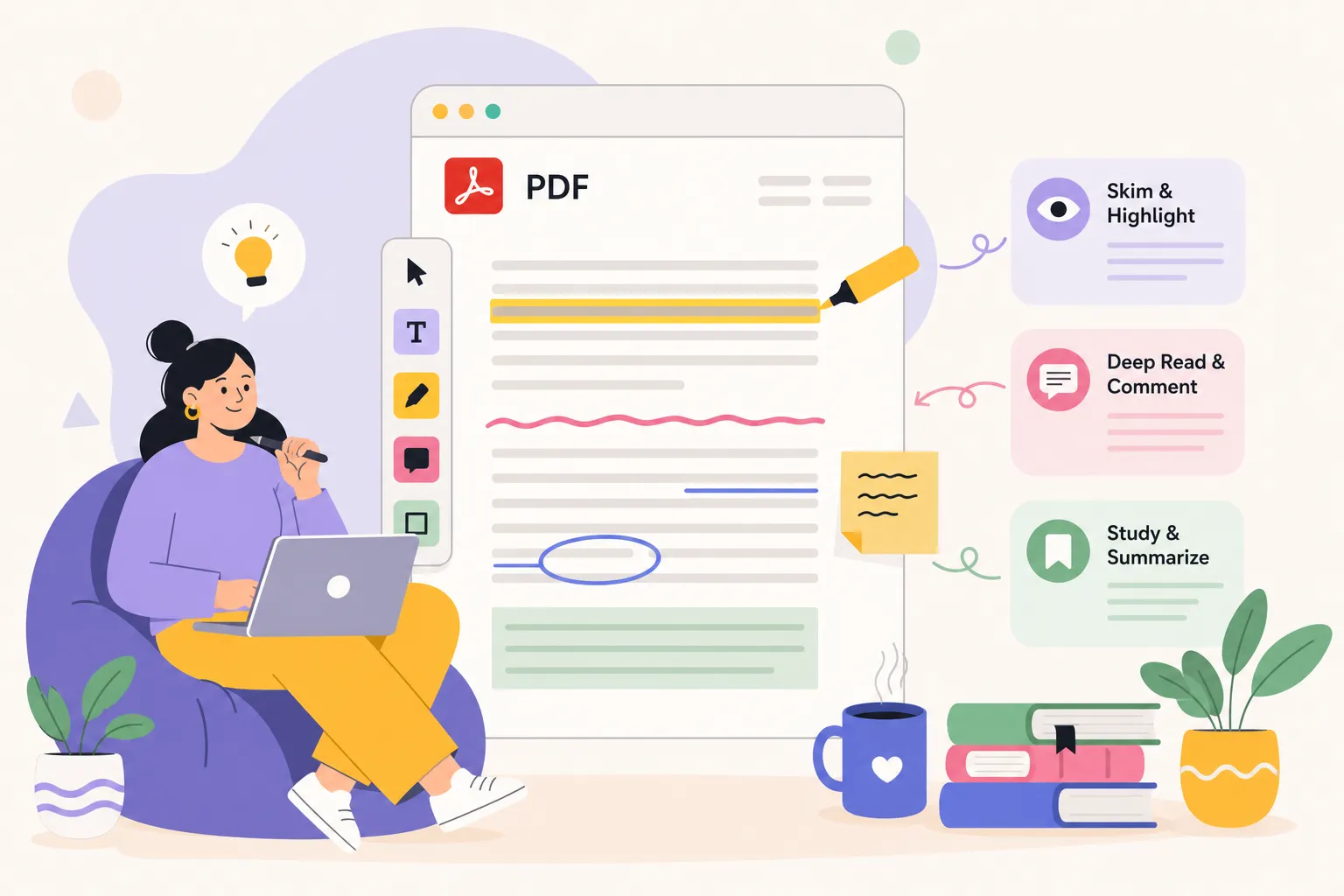
If you've ever asked what is the best way to annotate a PDF, you've probably already learned the hard way that more annotations doesn't mean better annotations. Picture this: you're 40 pages into a research paper, and the PDF looks like a highlighter exploded on it. Three colors of markup, sticky note icons stacked three deep in the margins, and the original text buried under so many annotations that re-reading it feels harder than the first pass. You annotated everything, and now you can't find anything.
This happens because the method matters as much as the habit. Highlighting works. Sticky notes work. Handwritten margin notes work. But each one fits a different reading goal, and using the wrong method consistently means your annotations work against you rather than for you. This guide breaks down the four main ways to annotate a PDF, matches each to the right reading scenario, and gives you honest tool recommendations by platform so you can build a system that holds up over time.
The four main PDF annotation methods, compared
Highlighting and text markup
Highlighting is most people's starting point, and for good reason: it's fast, universally supported, and requires zero setup. You drag over text, and the important part turns yellow (or blue, or green). Underline and strikethrough round out the toolkit for readers who want a bit more nuance without adding separate notes.
The limitation shows up on the second read. When every paragraph has at least one highlighted sentence, the visual priority signal disappears. A 20-page paper with aggressive highlighting looks the same at a glance as one with no annotations at all. Color-coding solves this, but only if you stick to a consistent system: one color for key arguments, another for data worth quoting, a third for sections you disagree with. Without that discipline, you're just painting.
Sticky notes and comment threads
Sticky notes add context that highlights can't carry. They're useful when you need to record not just that something matters, but why it matters, or how it connects to something else you read last week. In collaborative workflows, they're the standard tool for leaving feedback that a colleague can read and respond to without needing a separate document.
The frustration is navigational. Once you've left twenty notes across a long document, each one collapses into a small icon. Reviewing them means clicking through one at a time, which in a 60-page contract or a thesis chapter becomes genuinely tedious, a common complaint among heavy PDF users. Sticky notes are most useful when used sparingly, one or two per section, rather than as a replacement for margin writing.
Margin writing and freehand markup
For readers who think visually or who learned to annotate with a physical pen, freehand markup feels closest to real reading. You can draw arrows between related ideas, sketch a quick diagram next to a dense passage, or write a complete-sentence reaction the way you'd scribble in a textbook. Devices like the iPad with Apple Pencil have made freehand digital annotation much more practical and popular in recent years.
The structural problem is that PDF margins are frequently narrow, which limits space for handwriting. Notes get cramped, overlap with each other, or run off the page edge. The more thoroughly you annotate, the less legible your own notes become. This isn't a software problem. It's a geometric constraint built into how most PDFs are formatted.
What is the best way to annotate a PDF for your reading goal?
Annotating for quick review or approval
For fast reads where the goal is to approve, flag, or skim for specific information, highlighting combined with brief sticky notes is the right call. You're not building a study system; you're marking the document so someone (or future you, in an hour) can find the key points without reading everything.
Keep sticky notes to one sentence in this mode. A tag like "confirm with legal team" or "update this figure" is more useful than a three-paragraph explanation. Limit highlights to two colors: one for action items, one for key data. Anything that requires deeper thought can stay unread for now.
Annotating for deep research and study
Deep reading is where most annotation systems break down. Graduate students, lawyers reading contract language, and researchers working through dense academic papers need to capture not just what matters, but why it matters and how it connects to other sources. Highlights alone can't hold that.
The most effective strategy researchers use in 2026 follows a two-pass structure: skim the full document first to understand its shape, then annotate on the second read with a tight color code and full-sentence margin notes. The margin note is the critical piece. A note that says "key definition for section 3 of my paper" is recoverable three weeks later. A highlight with no context is not. The practical constraint, as mentioned above, is margin space. Tight PDF margins force you to either compress your notes or move them off the page entirely into a separate file, which breaks the connection between the note and its source.
Annotating to share and collaborate
Collaborative annotation has one non-negotiable requirement: the annotations need to display correctly on the recipient's device, regardless of what app they use. A sticky note created in one tool may appear as a blank icon in another, and handwritten ink may not render at all in a basic reader.
The safest approach for team feedback is to use tools that export to widely supported formats and to flatten annotations before sharing when the recipient doesn't need to edit them. When you know your collaborators are using different software, test your export format on their end before sending a file that matters.
Best PDF annotation tools by platform in 2026
Mac: start with Preview, upgrade when you hit its ceiling
macOS Preview handles the basics well. Open the Markup toolbar, add highlights, notes, shapes, or text boxes, and save. For personal annotation on documents you're keeping to yourself, Preview is the zero-install answer. Its gaps become apparent quickly: note text isn't searchable, stylus support is limited, and collaboration features are essentially nonexistent compared with dedicated apps.
When Preview isn't enough, PDFgear is a strong free upgrade. It processes files locally without uploading them to any server, which matters for sensitive documents. Adobe Acrobat Reader remains the familiar choice for anyone already working in Adobe's ecosystem, and it handles standard annotation workflows cleanly across operating systems.
Windows: free tools that cover most use cases
PDF-XChange Editor and PDFgear are the two most capable free annotation tools for Windows, both offering a broader toolkit than browser-based alternatives. Adobe Acrobat Reader is the safe choice for compatibility when documents will be shared across teams with mixed setups. For users who need a more structured annotation workflow and don't mind paying, PDFelement offers a cleaner experience with better organization of markup layers.
iPad: where handwriting annotation actually works
iPad with an Apple Pencil is the best hardware for stylus-based PDF annotation. Goodnotes and Notability are the two clearest choices for students and researchers who want searchable handwritten notes directly on PDF pages. Both work offline and save locally, which matters when the document is confidential. Goodnotes handles shape recognition and handwriting search particularly well; Notability's audio sync feature is useful for annotating while listening to a lecture or interview recording.
Online tools: convenient, with one important caveat
Browser-based tools like Xodo Web or Kami are the fastest option when you need to annotate something once without installing software. The trade-off is worth understanding clearly: if the tool uploads your PDF to a remote server for processing, that document may be stored, logged, or retained beyond the session. For non-sensitive documents with a quick turnaround, this is usually acceptable. For anything confidential, it isn't.
Side-panel annotation: the method that keeps your PDF readable
Why traditional methods compete with the text you're trying to read
Every standard annotation method occupies the same visual space as the document content. Highlights sit on top of words. Sticky note icons cluster at the edges of the page. Handwritten margin notes fight for the narrow strip of white space beside the text column. The more annotations you add, the harder the document becomes to read at a glance. This is not a software limitation that a better app can solve. It's a structural constraint of standard PDF page geometry.
The practical consequence is that heavily annotated documents become difficult to re-read, which is exactly the opposite of what annotation is supposed to accomplish. For one-pass review, this trade-off is manageable. For documents you return to repeatedly, it compounds over time.
How SidePDF by JotLayer solves the margin problem
SidePDF takes a different approach: instead of placing annotations on top of the document, it physically widens the page geometry to create real margin space beside the content. When you hover a page and expand the left or right edge, the PDF gets wider. Your typed notes and hand-drawn diagrams sit in that expanded margin, aligned with the paragraph they reference, while the source text stays completely unmodified and readable at full size.
The practical experience feels like reading a physical book with a notebook laid open beside it, except the notes stay anchored to the exact page they belong to. For a graduate student annotating a 40-page academic paper, or a lawyer working through a contract line by line, this means annotations aid comprehension instead of competing with it. SidePDF saves all annotation data locally in browser storage by default. The document never leaves the device, which makes it a practical choice for sensitive material that can't go near a third-party server.
Who benefits most from this approach
The readers who get the most out of side-panel annotation are the ones who return to their notes. Graduate students synthesizing literature across a semester, lawyers who review the same contract language across multiple drafts, UX researchers marking up reports they'll reference for weeks: these are the readers for whom the standard annotation model breaks down fastest. Highlighting and sticky notes work well for a single read. They work poorly for a document you'll open fifteen more times.
Exporting and sharing annotations without compatibility headaches
Flattening annotations so anyone can see them
Interactive annotation layers, highlights, sticky note icons, and comment boxes, may not display in every PDF reader. A note created in one tool can appear as a blank icon or go missing entirely when opened in a different app. Flattening burns annotations into the page as visible content, making them readable in any PDF viewer without special support.
On macOS Preview, flattening is straightforward: File, then Print, then Save as PDF from the print dialog. The output file bakes all visible markup into the page. In Adobe Acrobat Pro, the more controlled route is through Print Production and the Preflight tool, using the "Flatten annotations and form fields" fixup. PDFelement offers a dedicated flatten option in its export workflow. The practical rule: flatten before sharing whenever you don't know what software the recipient uses.
Exporting annotation data for collaborative workflows
When the goal is to share annotations with a team who will continue editing rather than just reading, flattening destroys the flexibility you need. XFDF and FDF are the standard portable formats for annotation data: they can be exported from one compatible app and imported into another, keeping all the markup editable and structured. In Adobe Acrobat, this is typically File, then Export, then Annotations, then XFDF or FDF depending on version.
Some tools, including PDF Expert, also support annotation summary exports as HTML, text, or Markdown. This is useful when the goal is to share the notes themselves as a readable document, separate from the PDF, which works well for research synthesis or editorial review workflows.
Keeping annotated documents private
Local tools versus cloud upload: what actually differs
The core distinction is simple: tools that upload your PDF to a remote server expose it to third-party storage, server logs, potential breach, and retention policies you may not have read carefully. Tools that process the file locally on your device don't. For everyday PDFs, the cloud convenience is usually worth the trade-off. For contracts, medical records, confidential research, or anything covered by attorney-client privilege, local-first tools are the safer default.
Preview on macOS, PDF-XChange Editor on Windows, PDFgear on both platforms, and SidePDF by JotLayer all process locally. Kami and many online converters upload to servers. Xodo's desktop app works locally; its web version doesn't carry the same guarantee.
Practical rules for sensitive PDFs
Before using any annotation tool on a confidential document, check whether the tool uploads files during the annotation process. Most legitimate tools state this clearly in their privacy documentation. Avoid cloud annotation tools on shared or public computers, where session data or cached files can persist after you close the browser. Also remember that annotations are embedded in the PDF structure: when you share an annotated document, you share everything in it, including any sticky notes or comments that weren't meant for the recipient. Export a clean copy, or flatten only the intended markup before the file leaves your hands.
What is the best way to annotate a PDF? Pick one method and commit
The best way to annotate a PDF is the one that fits how you actually use your notes afterward. Highlights work well for quick orientation and one-pass review. Sticky notes carry context in collaborative feedback workflows. Handwritten margin notes support tactile, non-linear thinking on iPad with a stylus. Side-panel annotation, the approach SidePDF by JotLayer takes, is the right fit for documents you return to repeatedly and want to remain readable under a full set of notes.
None of these methods requires an expensive setup or hours of configuration. Pick the one that matches your most common reading scenario, use it consistently for a week, and pay attention to whether your annotations are helping you think or just collecting on the page. That feedback is the fastest way to find a system that actually holds up.
Frequently asked questions
What is the best way to annotate a PDF?+
The one that fits how you use your notes afterward. Highlights work for quick orientation and one-pass review. Sticky notes carry context in collaborative feedback. Handwritten margin notes suit tactile, non-linear thinking on an iPad with a stylus. Side-panel annotation fits documents you return to repeatedly and want to stay readable under a full set of notes.
Why do my highlights stop being useful on the second read?+
When every paragraph has at least one highlighted sentence, the visual priority signal disappears - a 20-page paper with aggressive highlighting looks the same at a glance as one with no annotations at all. Color-coding fixes it, but only with a consistent system: one color for key arguments, another for data worth quoting, a third for sections you disagree with.
How should I annotate for deep research or study?+
Use a two-pass structure: skim the full document first to understand its shape, then annotate on the second read with a tight color code and full-sentence margin notes. The margin note is the critical piece. A note saying "key definition for section 3 of my paper" is recoverable three weeks later; a highlight with no context is not.
What is the best free PDF annotation tool on Mac and Windows?+
On macOS, Preview covers the basics with no install, though its note text is not searchable and stylus support is limited. PDFgear is a strong free upgrade on both platforms and processes files locally. On Windows, PDF-XChange Editor and PDFgear are the two most capable free options, and Adobe Acrobat Reader is the safe choice for cross-team compatibility.
Why do my annotations disappear when someone else opens the PDF?+
Interactive annotation layers may not display in every reader - a note created in one tool can appear as a blank icon or go missing in another. Flattening burns annotations into the page as visible content so they are readable in any PDF viewer. On macOS Preview, use File, then Print, then Save as PDF. Flatten before sharing whenever you do not know what software the recipient uses.
How do I share annotations that a team can still edit?+
Do not flatten them, because flattening destroys the flexibility you need. XFDF and FDF are the standard portable formats for annotation data: export from one compatible app and import into another with the markup still editable and structured. In Adobe Acrobat this is typically File, then Export, then Annotations.
Are online PDF annotation tools safe for confidential documents?+
Not reliably. If a tool uploads your PDF to a remote server for processing, that document may be stored, logged or retained beyond the session. For contracts, medical records or anything privileged, use tools that process locally - Preview on macOS, PDF-XChange Editor on Windows, PDFgear on both, and SidePDF by JotLayer all do.
Related reading
If the two-pass structure above is what you are after, the Cornell method is the version of it with a layout attached, and there is a free Cornell notes template PDF maker that can also add the cue column and summary strip to a PDF you already have.
Notes beside the text, not on top of it
SidePDF widens the page itself, so your notes get real margin space and the document stays readable. Free, and nothing leaves your computer.
See how SidePDF worksJan
Jan builds the JotLayer extensions: JotLayer for drawing on Notion pages, SidePDF for writing in the margins of PDFs, JotLog for filing what you read into Notion, and a YouTube picture-in-picture extension. All four are published on the Chrome Web Store and do their work in the browser.
More about Jan