How to Turn Video Notes and Lecture Slides into a PDF with SidePDF
Start with a notebook for your course or project
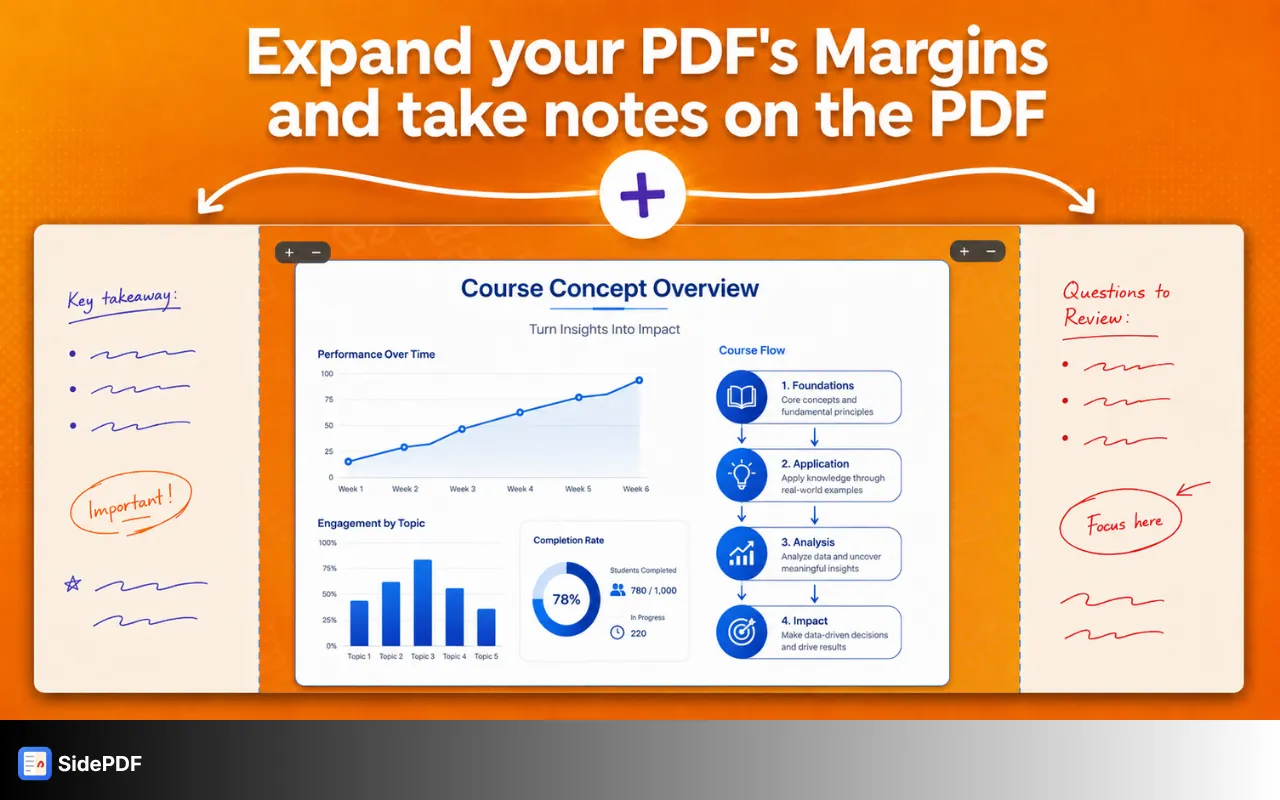
SidePDF is a PDF editor and note taker for Chrome and Edge. Its free editor lets you widen individual pages so you can write beside the text, add highlights and images, and save your work as a PDF. The new Pro Notebook Library gives a course or project one place for its videos, readings and notes.
Say you're studying how a neural network learns. Create a notebook for the course and import pages from the assigned PDF. While watching the lecture, capture the diagram that makes the explanation click and send it to the same notebook. Add a blank page for an explanation in your own words. The next lecture can go into the same notebook, and you can find it by name when you return. Notebooks are stored on your device, and you can import an existing .sidepdf notebook into the library.
How to capture video notes with clickable timestamps
- Open a lesson in a supported video player and choose the notebook you want to add to.
- Capture the frame that contains the idea you want to remember. Keep capturing as you watch without opening a new editor tab for each screenshot.
- Open the capture in SidePDF. Widen the margin, highlight a detail, draw an arrow or type a short explanation beside the image. You can also copy the screenshot to the clipboard.
- Click the timestamp to return to the video moment. SidePDF reuses a matching open video tab when one is available.
Add a question beside the screenshot that you can answer before revisiting the clip. For a diagram, try “Which part of this process changes during training?” The timestamp gives you a quick way to check your answer against the original explanation.
How to turn recorded lecture slides into a PDF
Use Video Slides to PDF when a recording contains several slides you want to keep. SidePDF samples the recording and compares frames to find visual changes. Adjust the sampling interval, then review the thumbnails and remove any duplicates, transitions or frames you don't need. You can stop the scan early and review the slides collected so far.
Download the selected frames directly as a PDF, open them in SidePDF for annotation, or add them to an existing notebook. Include clickable timestamps so you can return to the explanation behind each slide. The output contains captured slide images, which makes it useful for reviewing recordings when you don't have a separate slide deck.
Give your pages a consistent layout
SidePDF Pro lets you apply Cornell, lined, graph or screenshot-above-notes layouts to a page, a page range or an entire document. Adjust the spacing, guide colours and margins, then save the layout as a named template. You can click ruled notes areas and type directly on the lines. Layouts stay with your exported PDF and your editable project.
Pro also saves unlimited favourite colours and stroke sizes, with separate size presets for the pen, arrow and box tools. For example, you can keep a thin pen for labels and a thicker arrow for pointing to a feature in a lecture slide.
Edit once and read the exported PDF anywhere
Export your finished notebook or annotated document as a standard PDF. Your notes, drawings and expanded margins are part of the page, and typed notes stay searchable and selectable. Share it with a classmate who uses Acrobat, send it to your phone for revision, or open it later in your preferred PDF reader.
To keep editing individual annotations or moving images around, save an editable .sidepdf project as well. It keeps the original PDF together with notes, drawings, images, links, bookmarks and page layouts. Keep the project as your working copy and send the PDF as the reading copy.
What’s new in the free SidePDF editor?
You can follow links already in a PDF and add underlined links that stay clickable after export. View mode gives you a quieter reading workspace. Edit mode brings the tools back. You can remove unwanted pages, undo a removal, or insert blank pages wherever you need more space.
For drawing, the free editor has red, blue and green swatches, two recent colours and room for one custom favourite. It offers 1, 3 and 6 pt presets plus one custom size for each drawing tool. You can adjust the crosshair and customise the toolbar theme. There’s also a free example notebook with a video moment, a PDF reading and study notes, plus previews of the Pro layouts.
If you're starting with a single document, follow the guide to annotating a PDF and saving your notes.
Frequently asked questions
Can I open a SidePDF export in Adobe Acrobat or on my phone?
Yes. Export a standard PDF and open it in Adobe Acrobat, Apple Preview, or a PDF reader on iPhone or Android. Notes, drawings and added margins travel with the PDF. Nobody needs SidePDF installed to read it.
Which video platforms does SidePDF support?
Video Notes works on supported players on YouTube, Udemy, Coursera, edX, Khan Academy, Skillshare, Pluralsight, LinkedIn Learning and Vimeo. Controls exclude small players, hover previews and decorative loops.
Is SidePDF a free PDF editor?
Yes. The core PDF editor works without an account and includes expandable margins, handwriting, highlights, typed notes, images, links and standard PDF export. Notebook Library, video capture, slide extraction, reusable layouts, saving editable projects and unlimited drawing favourites are Pro features.
Should I export a PDF or save a .sidepdf project?
Export a PDF for sharing and reading across apps and devices. Save a .sidepdf project to continue editing individual elements in SidePDF. Pro is required to save or update the project, and opening an existing project is free.
Related reading
Jan
Jan builds the JotLayer extensions: JotLayer for drawing on Notion pages, SidePDF for writing in the margins of PDFs, JotLog for filing what you read into Notion, and a YouTube picture-in-picture extension. All four are published on the Chrome Web Store and do their work in the browser.
More about Jan