
SidePDF vs BytesPDF: Add Notes, Then Shrink the PDF
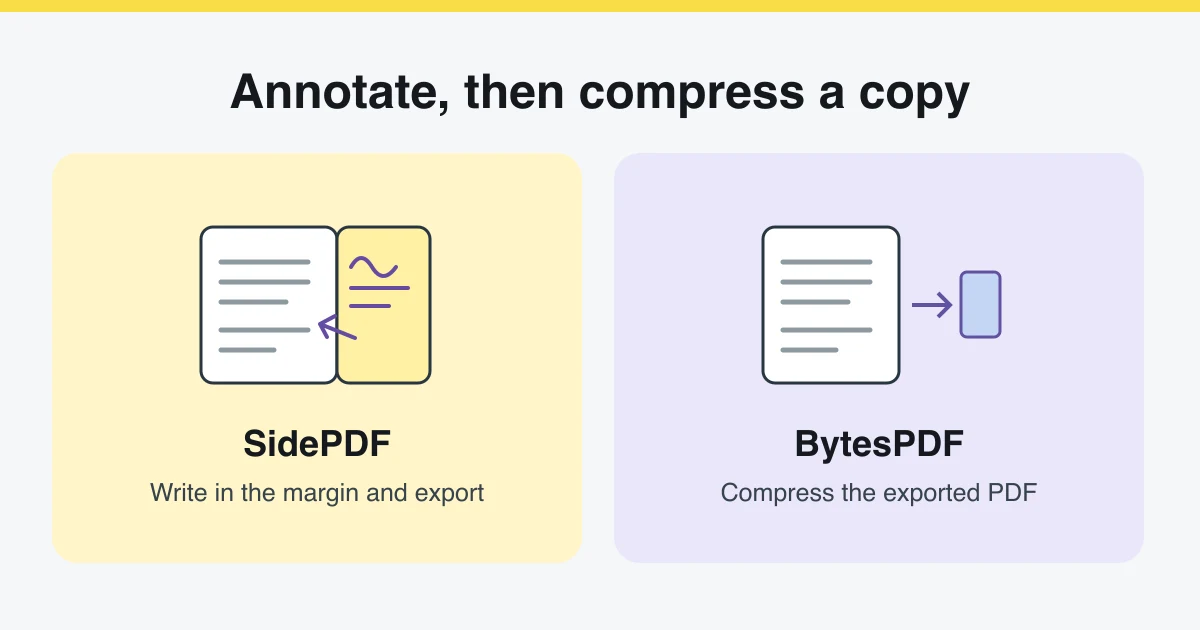
We make SidePDF. This comparison uses BytesPDF’s tool documentation to explain what you can edit and what compression changes.
Do you need to mark up the page or change the file size?
| Task | SidePDF | BytesPDF |
|---|---|---|
| Write beside a diagram or paragraph | Expand the left or right side of the page and annotate the new space | Add text, highlights or drawings over an existing page |
| Add a quick mark without installing an extension | Requires the SidePDF extension in Chrome or Edge | Open the browser editor and download the edited copy |
| Get under an attachment limit | Export a standard annotated PDF, then check the file size | Use the compressor to reduce file size and check whether the output fits |
| Keep a working copy for revising individual marks | Save an editable .sidepdf project with Pro | Keep the original and the separate edited PDF |
The BytesPDF editor documents typed overlays, freehand drawing, highlights and basic page reordering, rotation and deletion. It publishes separate input limits for editing and compression. SidePDF focuses on the reading step. For example, add a right margin to pages that need worked answers and draw a line from an explanation to the original question.
How to compress the annotated copy without losing legibility
Imagine a set of lecture slides that already contains large screenshots. You annotate a few diagrams, export the notes and find the resulting file exceeds your class portal's upload limit. Start from the PDF you exported and keep it as your master.
- Open the exported PDF in BytesPDF’s compressor. Begin with a moderate setting, particularly when the original PDF contains scans or detailed diagrams.
- Open the smaller PDF at your normal reading zoom. Check tiny diagram labels, handwritten marks, the widened edges and any timestamp links you expect to use. Confirm the page count and file size.
- If the answer diagrams turn fuzzy, retry from the uncompressed export with less compression. A file made mostly of ordinary text may have little image data to shrink, so verify the result before submitting it.
BytesPDF says the compressor can re-encode embedded images without turning born-digital text into an image. A scanned PDF can still lose fine details at stronger settings. The first file to review is the one the recipient will receive. BytesPDF compression guide
Do these tools upload the PDF?
SidePDF works in your installed browser extension and saves the document and annotations on your device. BytesPDF says its web editor and compressor process the selected document locally. Separate website functions such as analytics or account features have their own data handling. Sharing or uploading a finished file is a separate step you control. SidePDF privacy details · BytesPDF privacy policy
If you'll return to the file to adjust the drawings later, keep the uncompressed PDF and, if you use SidePDF Pro, an editable .sidepdf project. For comparing broader browser tools, see SidePDF vs PDFWix and the guide to SidePDF alternatives.
Related reading
Janith
Janith builds the JotLayer extensions: JotLayer for drawing on Notion pages, SidePDF for writing in the margins of PDFs, JotLog for filing what you read into Notion, and a YouTube picture-in-picture extension. All four are published on the Chrome Web Store and do their work in the browser.
More about Janith