
SidePDF vs PDFWix: PDF Margin Notes and No-Install Editing
We make SidePDF. This comparison uses both products’ documentation to explain how their editing and page sizing work.
Can both tools add margins to a PDF?
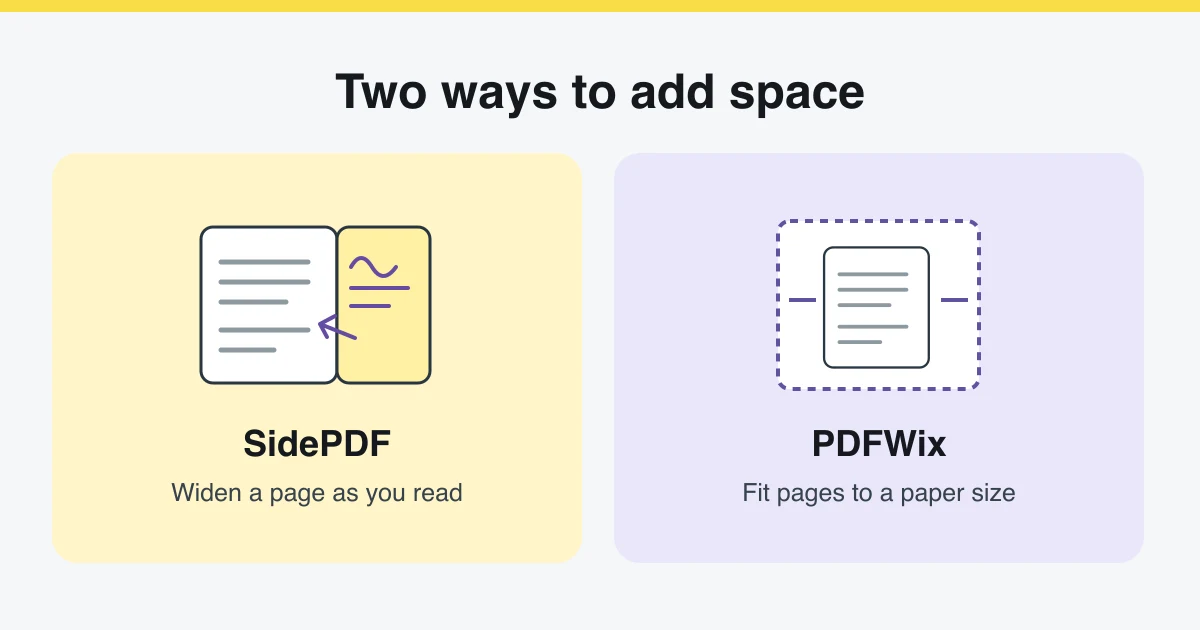
Yes, through different workflows. In SidePDF, you can widen one side of an individual page as you read. The new space becomes part of the exported page. The page that only needs a highlight can keep its current width, while the dense diagrams or worked examples get a wider place to write. The free extension includes the margin controls, pen, typed notes and standard PDF export.
PDFWix's Change PDF Page Size tool puts pages on a sheet size you choose, such as A4 or US Letter. It offers a margin setting in millimetres along with placement and scaling controls. That makes it useful for consistent print or binding margins across a document. The resulting page size comes from the sheet you selected.
Where PDFWix saves time
Suppose someone sends you a form that needs two lines of text and a rectangle around an important field. PDFWix is useful if you need the job done in one browser session with no extension to install. Its editing guide describes adding text, images, shapes, highlights and freehand marks to an existing page. Its toolkit also gives you dedicated tools for merging PDFs, splitting them and changing page sizes. If you need to revise full paragraphs in either workflow, start from the source document when you have it. Markup tools add content to the page, and the source document remains a better place to rewrite text.
Does PDFWix upload files?
Check the specific tool you open. PDFWix describes its edit workflow and resizing workflow as browser-side. Its privacy policy lists Protect PDF and Unlock PDF as server-side operations. Its Edit PDF page also links to an advanced editor on a separate domain, so check that site's handling before choosing it. SidePDF processes the PDF and marks locally in the extension. A document you originally open online still loads from its source.
When is SidePDF a better fit?
Think of an economics lecture handout. The diagram on page three is legible as it is, but you want to add equations and a sentence explaining the result. Open the PDF with SidePDF, widen the right margin on page three, put your explanation beside the diagram and draw an arrow from the note to the curve. Export a standard PDF and open it in Acrobat, Preview or a PDF reader on your phone. Readers can see the diagram and your notes together without installing the extension.
If you revisit the same layout each week, SidePDF Pro adds reusable page layouts. It also lets you save an editable .sidepdf project so you can adjust individual notes and drawings later. Export the standard PDF for sending and keep the project as your working copy.
For other workflows, compare the SidePDF alternatives or see SidePDF vs BytesPDF if file size is the main obstacle to sharing.
Related reading
Janith
Janith builds the JotLayer extensions: JotLayer for drawing on Notion pages, SidePDF for writing in the margins of PDFs, JotLog for filing what you read into Notion, and a YouTube picture-in-picture extension. All four are published on the Chrome Web Store and do their work in the browser.
More about Janith