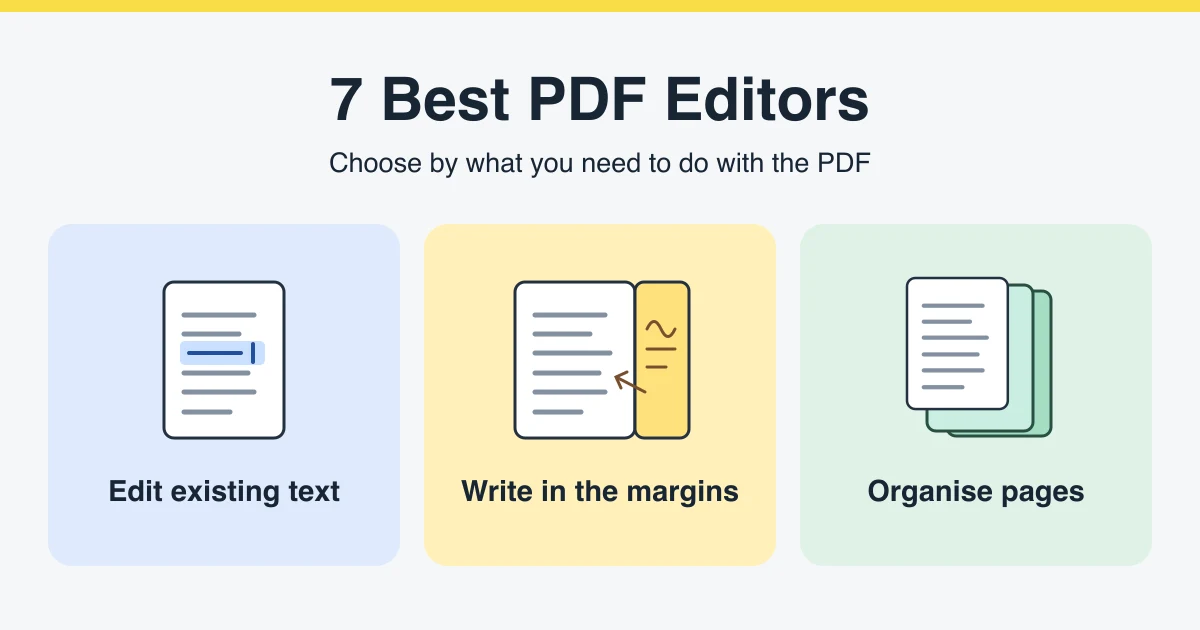
7 Best PDF Editors for Editing, Annotating and Organising PDFs
JotLayer makes SidePDF. We compared the products’ documented features, processing options and export formats in November 2026. Use the examples below to test the features that matter on a copy of your own PDF.
The best PDF editors at a glance
| Tool | Best for | Where it works | What to check before choosing |
|---|---|---|---|
| SidePDF | Free PDF margin notes and browser annotation | Desktop Chrome or Edge extension | Standard PDFs keep visible marks. Saving editable projects requires Pro. |
| Adobe Acrobat Pro | Advanced text editing, scanned PDFs and redaction | Desktop Acrobat Pro | Choose the appropriate paid plan. Check OCR and layout before sharing a scan. |
| PDFgear | Free editing of existing PDF text | Windows and Mac desktop apps | The web editor handles markup and page changes. Use the desktop app to replace original text. |
| Sejda | An occasional text correction in a browser | Web or installed Desktop app | The web editor uploads files and has free usage limits. Desktop processes files locally. |
| Xodo | Reading and marking up PDFs on a tablet or phone | iOS and Android, plus separate web and desktop products | Check the annotation format your recipient’s reader supports. |
| PDFWix | Merging, splitting and resizing without installing software | Web browser | Most tools run in the browser. Protect and Unlock use server processing. |
| Stirling PDF | PDF utilities on infrastructure you manage | Self-hosted server, desktop app or hosted service | Processing depends on the deployment and tool you choose. |
SidePDF for writing beside a PDF
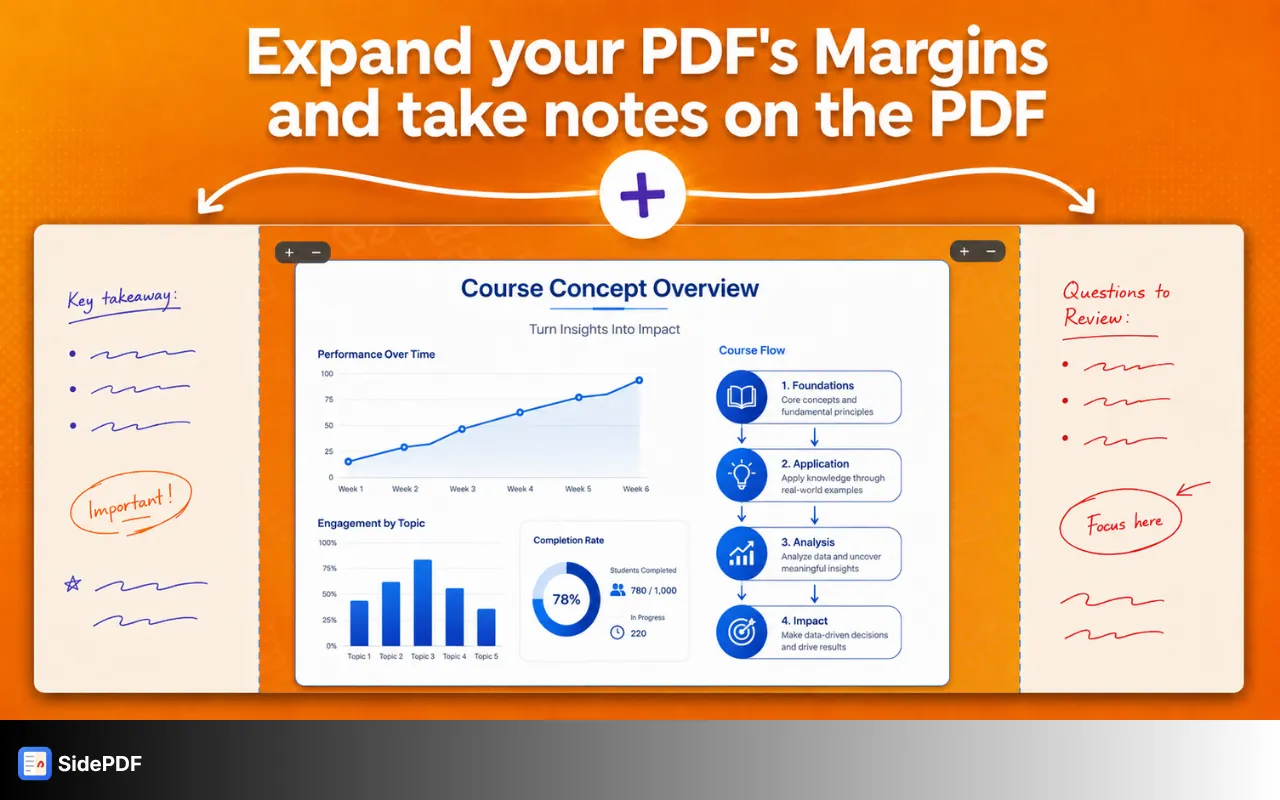
Use SidePDF when your work is mostly reading, reviewing or studying PDFs. On a crowded lecture slide, for example, widen the right margin and write the missing steps beside the equation. Leave the other pages at their original width. Save a standard PDF and a classmate can see your notes and the new margin in Acrobat, Preview or a PDF reader on their phone.
The free desktop Chrome and Edge editor includes expandable margins, handwriting, highlighting, typed notes, links, images and PDF export. The PDF content is processed on your computer. Pro adds reusable layouts, local notebooks and editable .sidepdf projects. For a job like correcting the wording in an existing paragraph, use a text editor such as PDFgear or Acrobat. SidePDF features · Guide to annotating PDFs
Adobe Acrobat Pro for advanced editing and scans
Acrobat Pro is a fit when you regularly edit existing text or images, make scans searchable, or redact sensitive words before sharing. Adobe’s scan-editing workflow applies optical character recognition (OCR) to create an editable copy. If you’re correcting a scanned invoice or proof, check numbers and names against the original and inspect the spacing after edits. Acrobat features · Editing scanned PDFs · Acrobat Pro redaction
PDFgear for free text editing on Windows or Mac
Try PDFgear Desktop when a text-based PDF needs a new date, a corrected heading or a few replaced words. It can modify the existing text directly. After changing a longer phrase, check the line breaks and surrounding fonts. PDFgear Online is useful for adding marks, boxes or pages, while editing existing text is a desktop feature. PDFgear’s desktop text-editing guide · PDFgear Online · SidePDF vs PDFgear
Sejda for a quick browser edit
Use Sejda’s online editor if you need to change a line of existing text, add a link or fill a form without installing an app. Its separate Resize PDF tool can add padding to the top, bottom or sides. The online editor asks you to upload the document and publishes free task, page and file-size limits. For offline work, use Sejda Desktop. For regularly widening pages and writing beside them in one workspace, try SidePDF. Sejda Online PDF Editor · Sejda Resize PDF · Sejda Desktop · SidePDF vs Sejda
Xodo for PDF annotation on mobile
Choose Xodo if you want to highlight or comment directly on an iPhone, iPad or Android device. Xodo also offers a browser annotator and separate desktop products. Its tool privacy list identifies which browser tools run locally and which upload files. When sharing feedback, send a test page to see whether the recipient can read or reply to your comments in their PDF app. Xodo PDF Annotator · Xodo tool privacy · SidePDF vs Xodo
PDFWix for quick browser utilities
PDFWix makes sense when your main task is merging files, splitting pages or fitting a document to a paper size. It’s also useful for quick markup without an extension. For example, combine several handouts in order, then open the result in a different app to take notes as you read. PDFWix says most tools process the file in your browser and identifies Protect and Unlock as server-side operations. PDFWix tools · SidePDF vs PDFWix
Stirling PDF for a self-hosted workflow
Stirling PDF is worth considering if your team wants PDF utilities such as OCR, conversion or redaction on infrastructure it controls. A self-hosted installation puts processing on the server you configure. For occasional work on one computer, Stirling also documents a Local Only mode in its desktop app, with a different set of available tools. Stirling server documentation · Stirling’s processing modes · SidePDF vs Stirling PDF
Try one representative page before choosing a PDF editor
- Changing existing text? Replace a date on a sample page and reopen the PDF. Check the font, line wrapping and whether you can still select and search the text.
- Annotating for sharing? Add a note beside a chart. Open the exported file on the recipient’s device and check that the note is visible at their usual zoom. If they need to edit or answer comments, test that separately.
- Working under a no-upload rule? Check the documentation for the exact tool and edition. A browser editor can process files locally, while a converter on the same website may require an upload.
If your main task is studying rather than revising a document, the SidePDF alternatives guide compares linked research workspaces, tablet notebooks and PDF margin notes in more detail.
Related reading
Janith
Janith builds the JotLayer extensions: JotLayer for drawing on Notion pages, SidePDF for writing in the margins of PDFs, JotLog for filing what you read into Notion, and a YouTube picture-in-picture extension. All four are published on the Chrome Web Store and do their work in the browser.
More about Janith