
SidePDF Alternatives for PDF Notes, Study and Editing
We build SidePDF. This guide compares documented features against a practical question: what do you need to do with the file after you open it?
Which PDF tool fits your next task?
| I need to… | Start with | Why |
|---|---|---|
| Handwrite or type beside a PDF and send the marked-up file | SidePDF | Add real writing space to individual pages and share a standard PDF. |
| Gather linked passages across several research papers | LiquidText | Pull excerpts into a workspace that can take you back to the source. |
| Turn readings into a mind map and review cards | MarginNote | Study from an outline, map or flashcards alongside the documents. |
| Study with a tablet and a handwriting notebook | Flexcil | Use pen gestures and keep a notebook alongside the reading. |
| Annotate a PDF on a phone or tablet | Xodo | Work in a native mobile app with PDF markup tools. |
| Fix wording in a PDF directly from a browser | Sejda | Its online editor can change existing PDF text. Its separate resize tool can add page margins. |
| Edit original text on a Windows PC or Mac | PDFgear | Use the desktop text editor. The online edition handles quick markup. |
| Resize a PDF for print or rearrange pages in a browser | PDFWix | Pick a dedicated tool for the job. Check the processing mode for that tool. |
| Compress a marked-up PDF before sending it | BytesPDF | Use a browser utility for a smaller copy after annotation. |
| Run PDF tools on infrastructure you control | Stirling PDF | Self-host document tools for workflows such as OCR, redaction and conversion. |
A PDF page, a study project or a document editor?
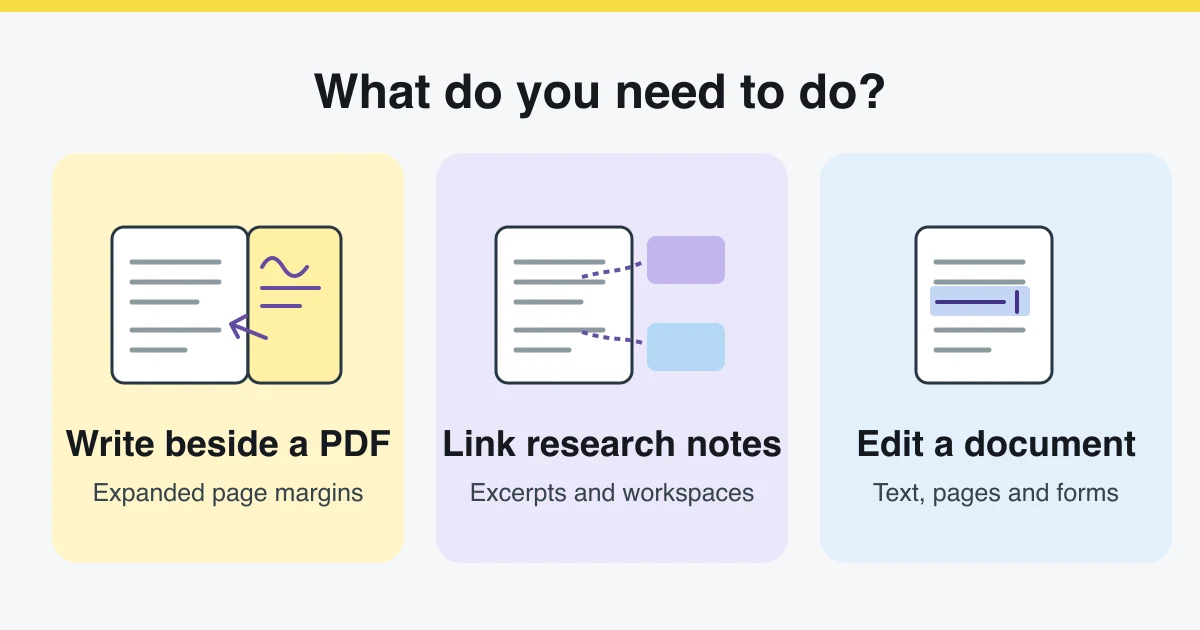
A PDF page you can hand to someone else. Start with SidePDF if your main task is writing explanations beside a reading, adding arrows to diagrams or putting review notes next to a draft. Widen the left or right margin as you work. The exported PDF keeps the extra space and visible markup. Keep a separate .sidepdf project if you use Pro and want to move individual drawings or notes later. SidePDF features and browser support · PDF and editable project export
A study project you’ll return to. Try LiquidText if you need to follow an excerpt back to a source across several readings. Try MarginNote if recall and mind mapping are the main activity, or Flexcil if you primarily work with a pen and tablet. All three offer PDF tools. Check which parts of your workspace survive the export, especially references and other app-specific interactions. LiquidText features · MarginNote · Flexcil
A document that needs to change. If you need to replace existing words, start with Sejda’s editor or PDFgear’s desktop app. To give feedback on those words, use a PDF annotator. If your workflow also depends on redaction, signing or conversion, pick the product and edition that explicitly documents that capability. Sejda PDF editor · PDFgear’s guide to editing original text · Xodo PDF editor
Which tools can add writing space to a PDF?
For a bigger page that you can annotate as you read, SidePDF lets you widen the left or right margin on selected pages and write in the extra space. Sejda’s separate resize tool adds whitespace to any side, which is useful when you want consistent padding for printing or want to prepare the file for another annotator. LiquidText is a fit when you want to collect excerpts in a separate workspace. SidePDF vs Sejda · SidePDF vs LiquidText · Sejda Resize PDF
Where is the PDF processed?
SidePDF renders and annotates PDFs locally in the extension. A website can also offer local processing, but check the specific tool you plan to use. For example, PDFWix says most of its tools run locally and lists server processing for Protect and Unlock. BytesPDF documents local browser processing for its utilities. Stirling PDF can run on a server you control, which is useful for a shared workflow but puts file handling on that deployment. SidePDF privacy policy · PDFWix · BytesPDF · Stirling
Try the export before moving your notes
Start with a representative PDF that you’re comfortable using for a test, such as the free Cornell notes template. Add a handwritten arrow, type a phrase you can search for and make a note next to a full page of text. Then export it and open the result in the reader your recipient actually uses. Check these three things:
- Does the note appear next to the passage at a comfortable zoom?
- Can you find the typed note with the reader’s search?
- If you need to revise the markup later, which file or project should you keep?
If you primarily print your notes, run the same check in print preview. If you need to collect passages across documents, add a second PDF and try following an excerpt back to its source.
For text edits, scans and page organisation, see our PDF editor buying guide for side-by-side picks by task.
Related reading
Janith
Janith builds the JotLayer extensions: JotLayer for drawing on Notion pages, SidePDF for writing in the margins of PDFs, JotLog for filing what you read into Notion, and a YouTube picture-in-picture extension. All four are published on the Chrome Web Store and do their work in the browser.
More about Janith