
SidePDF vs Sejda: Add PDF Margins or Edit the Page?
JotLayer makes SidePDF. This comparison uses the products’ published documentation, including Sejda’s separate Resize PDF and PDF Editor tools.
How the margin tools differ
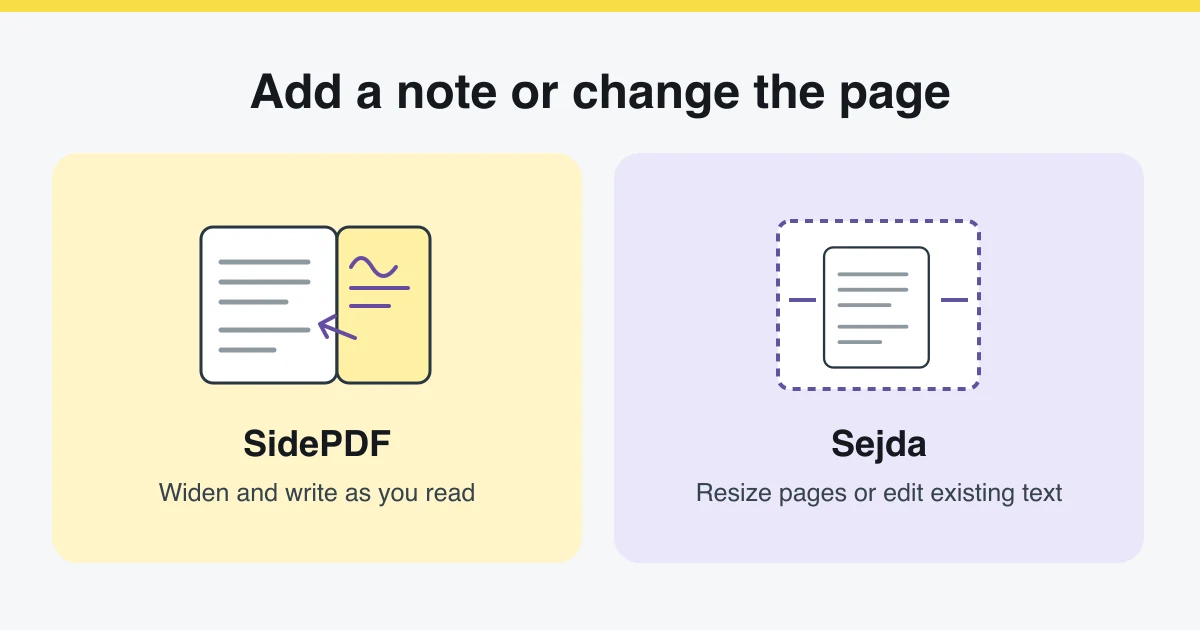
Sejda’s Resize PDF tool adds padding to the top, bottom, left or right. Set the values in inches or centimeters, choose the pages, preview the change, and save the result. It can also resize pages to a standard or custom paper size. For a handout where the binding needs the same clearance on every page, its margin controls are a good fit.
In SidePDF, you widen either side of a page while it’s open for reading. If a diagram and its caption need a full explanation, widen that page and type or write beside them. Leave pages that need no annotation at their existing width. Notes and expanded margins are part of the standard PDF you export. The basic workflow is free and works without a SidePDF account. Pro adds reusable layouts for repeating the same setup across a page range or document. SidePDF features and layouts
| If you need to… | Start here |
|---|---|
| Set equal padding on selected pages or resize a handout to A4 | Sejda Resize PDF |
| Make room on one page and write next to a diagram as you read | SidePDF |
| Replace an existing date in selectable PDF text | Sejda PDF Editor |
| Keep handwriting visible when someone opens the file in another PDF reader | Export a standard PDF from SidePDF |
| Add cues and a summary box to slides before printing | JotLayer’s free Cornell notes generator |
The Cornell notes generator is a third option if the end result should be a printable study sheet. Use Add to a PDF to lay out a reading or slide deck with a cue column and summary strip.
Sejda Web and Desktop process files differently
Sejda’s online editor accepts an upload. Sejda says the web tool deletes uploaded files after two hours and publishes free usage limits on the editor page. Sejda Desktop processes files on your computer. For a document governed by a no-upload rule, check that you're using the desktop version. Sejda Online PDF Editor · Sejda Desktop
SidePDF processes PDF files and annotations locally inside the Chrome or Edge extension. The standard PDF you save is an ordinary file you can send or open in Acrobat, Apple Preview, or a mobile PDF reader. SidePDF processing and export
Editing original text versus adding a note
If a brochure says “December 10” and the published copy needs to read “December 12,” that requires changing the original text. Sejda’s editor can select and edit existing text where the PDF supports it. If you are reviewing the brochure and want to leave the author a note to confirm the date, use SidePDF to put the question beside the page. That gives the author a review copy to work from. Sejda’s editing instructions
Before sending a print-ready file, open it in your usual PDF reader and check print preview. Added margins increase page width, so a printer set to fit the page may shrink the content and your notes. For a fixed-size handout, check the target size and the preview before sharing or printing.
See the SidePDF alternatives guide for more PDF workflows, or compare SidePDF with PDFgear if you want to edit original text on a computer without uploading the file.
Related reading
Janith
Janith builds the JotLayer extensions: JotLayer for drawing on Notion pages, SidePDF for writing in the margins of PDFs, JotLog for filing what you read into Notion, and a YouTube picture-in-picture extension. All four are published on the Chrome Web Store and do their work in the browser.
More about Janith