
SidePDF vs Stirling PDF: Local Notes or a Self-Hosted Toolkit?
We make SidePDF. This comparison uses Stirling’s documentation to explain where its tools run and how its annotations are saved.
Where does document processing happen?
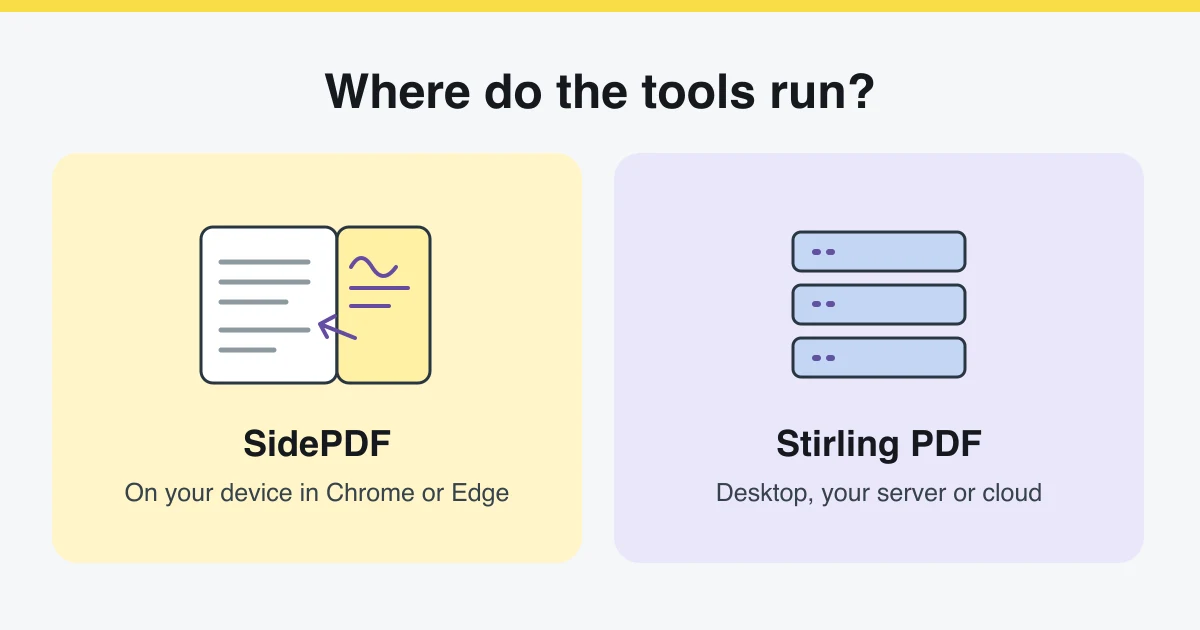
SidePDF opens the PDF in a browser extension. It reads the file from your device or the original website, and the annotation tools process the document on your device. The free editor can mark up a local file without an account. You can use it with an offline PDF once the extension is installed. SidePDF product and privacy details
Stirling PDF offers a desktop app, a self-hosted server and a hosted cloud service. Local Only mode in the desktop app runs supported tools on the device. Features that require a server are unavailable unless you switch to a connected mode. With the self-hosted deployment, the server you configure can receive and process the document. Stirling Cloud can receive files when a chosen operation needs its engine. The desktop app identifies those operations with a cloud badge. Stirling PDF’s guide to where tools run · Cloud files and privacy
If a team already has a private server and routinely converts incoming files or makes scans searchable, Stirling's self-hosted deployment can centralize those tasks. For someone reading lecture PDFs or technical manuals alone, the SidePDF extension handles handwriting and margin notes with no server to administer.
Choose the annotation format your recipient needs
Stirling's viewer supports pen marks, highlights, shapes and comments. Its comments sidebar can locate a comment in the document, search replies and export them to CSV. When you save, Stirling writes standard PDF annotations, useful if the recipient's PDF viewer supports comments and they need to inspect a review thread. It also has a separate page size and scaling tool. Stirling’s annotation guide
SidePDF gives you left and right writing space on the page itself. Exporting a standard PDF includes the expanded page width and your marks in the document, so you can read the result in Acrobat, Apple Preview or a phone PDF viewer. If you want to adjust the individual annotations later, use SidePDF Pro to save an editable .sidepdf project. SidePDF’s PDF export and editable project formats
How to use both tools on a scanned reading packet
- If a set of scanned chapters needs text search first, run Stirling’s OCR in an environment where that tool is available. Keep the original and check that text from a few pages can be searched or selected. Stirling’s OCR guide
- Open the resulting PDF in SidePDF. Widen the pages where you want space for questions, handwritten reactions or notes on diagrams.
- Export a standard PDF and check one widened page in the PDF reader your classmates use. Keep a separate editable project if you want to revise your annotations after sharing.
For a quick browser tool that needs no extension or hosted setup, see SidePDF vs PDFWix. Compare other SidePDF alternatives if your main priority is a tablet study workspace or native document editing.
Related reading
Janith
Janith builds the JotLayer extensions: JotLayer for drawing on Notion pages, SidePDF for writing in the margins of PDFs, JotLog for filing what you read into Notion, and a YouTube picture-in-picture extension. All four are published on the Chrome Web Store and do their work in the browser.
More about Janith