
SidePDF vs Xodo: Which PDF Annotator Fits Your Workflow?
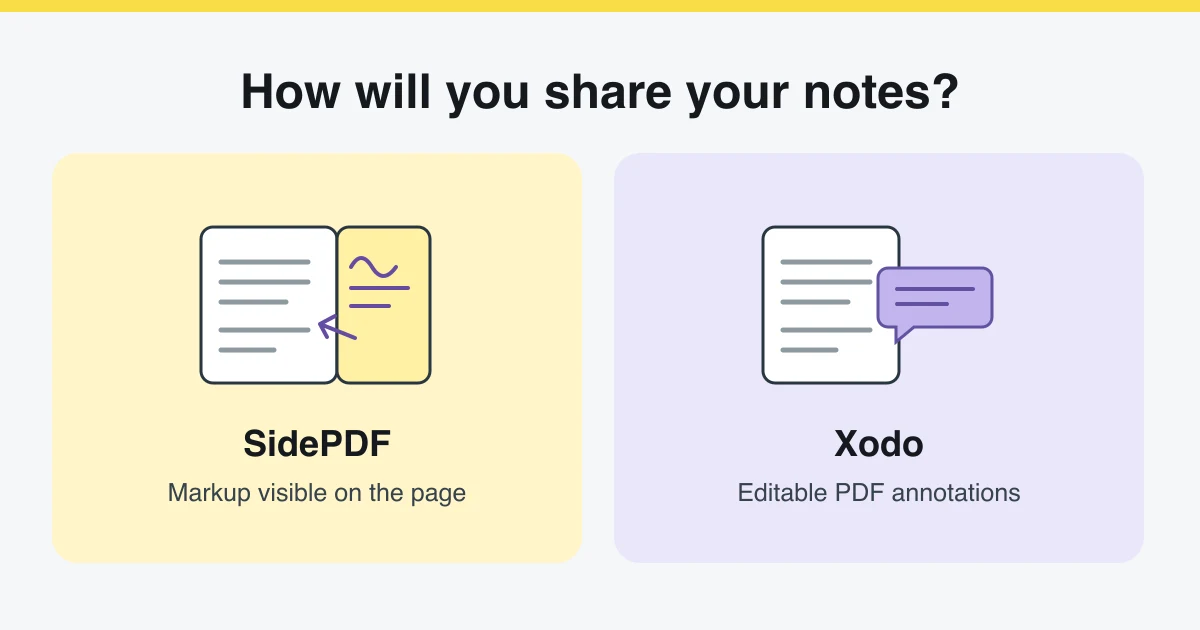
JotLayer makes SidePDF. This comparison uses each product’s published documentation and separates the Xodo web, mobile and desktop tools so you can choose the right one.
SidePDF and Xodo at a glance
| Your task | SidePDF | Xodo |
|---|---|---|
| Write beside a dense PDF page | Widen the left or right margin, then handwrite or type into the new space | Use highlights, freehand ink and comments in the web annotator or an Xodo app |
| Mark up the file on a phone or tablet | Edit in the desktop Chrome or Edge extension and read the exported PDF on mobile | Annotate directly in the iOS or Android app |
| Hand off a finished copy | Export a standard PDF with the notes and expanded margins on the page | Save the PDF with annotations, or use a flattened copy for wider viewer compatibility |
| Revise the source document | Add notes, drawings, links and images alongside the source | Xodo PDF Studio adds tools for editing document content, OCR and form creation |
SidePDF product guide · Xodo PDF Annotator · Xodo PDF Studio
Can your reader edit the notes?
Suppose you need to review a densely formatted paper. In SidePDF, widen the margin on the methods page, type a question next to the relevant paragraph, and draw an arrow back to the line. The margin is part of the exported PDF page. A colleague can open that PDF in Acrobat, Apple Preview or a mobile PDF reader and see the question beside the text.
If your colleague needs to reply using the PDF’s comment tools, use a workflow that keeps the markup as editable PDF annotations. Xodo’s documentation distinguishes annotations from the underlying page content. Its help also describes saving a flattened copy on mobile when the recipient’s viewer struggles to display annotations. Keep the editable version if reviewers are still adding comments. Xodo PDF Studio annotation reference · Xodo’s guide to flattening annotations
When you want to move individual notes, images and drawings later in SidePDF, save an editable .sidepdf project as a working copy. Saving or updating that project requires Pro. Opening an existing project is free, and standard PDF export is part of the free editor. SidePDF export formats
Which Xodo product are you comparing?
- Xodo Web offers annotation without installing an extension. Xodo’s privacy guide lists its Online PDF Editor as browser-only processing. Several other tools, including its PDF-to-Word converter, upload files for processing. Check the specific tool when handling a document with a no-upload requirement. Xodo tool privacy list
- Xodo’s mobile apps are the practical choice for people who do the markup on iOS or Android. SidePDF lets you take the finished PDF to either device after editing on a computer. Xodo mobile annotation options · SidePDF
- Xodo PDF Reader and PDF Studio are separate desktop products. Xodo lists its Reader for offline markup on Windows, macOS and Linux. PDF Studio is its paid desktop editor for tasks such as OCR, forms and source document edits. Xodo PDF Annotator · Xodo PDF Studio
Check the receiving app before you commit
Use a copy of one representative PDF, add a note on its most crowded page, and open the saved file on the device your reader actually uses. Check whether the note is visible, whether the page still fits comfortably, and whether the recipient can edit or reply to the note if needed. A wider page is useful on a laptop and can require more zoom on a phone. If the job is to add side notes and send a readable copy in a single file, choose SidePDF. If it requires editing on a tablet or continuing an annotation exchange, try the appropriate Xodo app.
See the SidePDF alternatives guide for more reading and markup options, or compare SidePDF with PDFgear for free desktop text editing.
Related reading
Janith
Janith builds the JotLayer extensions: JotLayer for drawing on Notion pages, SidePDF for writing in the margins of PDFs, JotLog for filing what you read into Notion, and a YouTube picture-in-picture extension. All four are published on the Chrome Web Store and do their work in the browser.
More about Janith