
SidePDF vs LiquidText for PDF Margin Notes and Research
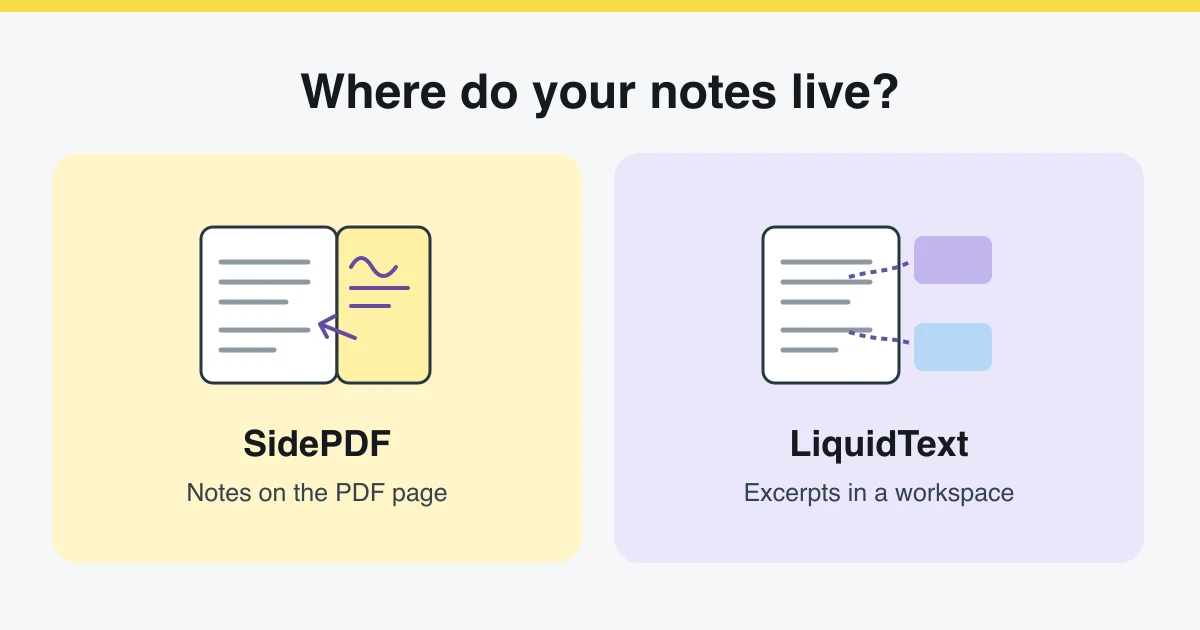
We make SidePDF. This comparison uses our product documentation and LiquidText’s published features and demos.
| Decision | SidePDF | LiquidText |
|---|---|---|
| Where do side notes go? | In space added to the left, right or both sides of the PDF page. | In a separate project workspace, or as annotations on the document. |
| How do I connect ideas? | Use arrows and notes beside the source page. | Pull passages into a workspace and follow excerpts back to their source. Paid features include drawing interactive ink links. |
| What can I send? | Export a standard PDF with visible notes and margins. Pro can save an editable .sidepdf project for further editing in SidePDF. | Export a PDF with the workspace and documents, export notes and excerpts to Word, or send a LiquidText project for continued work in the app. |
| Where can I work? | Chrome or Edge on a computer. Open the exported PDF in a regular reader on a phone or tablet. | Native apps for iPad, iPhone, Mac and Windows. Paid options provide cross-device sync and backup. |
SidePDF feature overview · LiquidText features · LiquidText app listing and export options · LiquidText platforms
A margin attached to a page or a workspace attached to a project
Say you are reviewing a 12-page research paper before a lab meeting. On page four you want to draw an arrow to the control group and write a question beside the figure. On page eight you want to explain one assumption. In SidePDF, widen those two pages and write beside them. The rest of the document can keep its original page widths. When you export, a colleague sees your arrow and note right beside the figure in Acrobat, Preview or a PDF reader on their phone. SidePDF processes the document in the browser on your device, and its free editor includes widening, annotation and standard PDF export. SidePDF Chrome Web Store listing
Now suppose the lab is comparing methods across four papers. You want to pull passages describing each control group into one place, group them by method, and click a passage to check its original context. That is the job LiquidText’s workspace was built for. Its excerpt links connect your analysis back to source passages. SidePDF Pro can collect pages from several PDFs in one notebook, but a notebook of annotated pages serves a different workflow from a map of live excerpts. LiquidText workspace demo · SidePDF Pro notebooks and projects
Can both send an ordinary PDF?
Yes. The difference is what you want the recipient to see. In SidePDF, the added space belongs to each page, so a note drawn beside a figure stays beside that figure in the exported PDF. Keep the editable project when you expect to move individual notes or ink later. LiquidText can export the workspace and documents together as a PDF, or turn notes and excerpts into a Word document. Share the app’s project file when the recipient needs to continue using the workspace. SidePDF export guide · LiquidText export demo
If you print on US Letter or A4, preview the widest page at your normal print settings. A large margin can make the source text smaller when the whole widened page is fitted onto a sheet. Start with enough room for a few lines and open the saved PDF in the reader or print workflow you actually use.
Is SidePDF a free LiquidText alternative?
SidePDF’s free editor is a fit for margin notes, markups and shareable PDF output on a desktop browser. If your research depends on linked excerpts, or you want to annotate directly in a native iPad app, LiquidText is the closer fit. Check the current plan for features such as live ink links and cross-device sync. LiquidText app listing
For study maps and review cards, see SidePDF vs MarginNote. For other editing and local processing tools, see the SidePDF alternatives guide.
Related reading
Janith
Janith builds the JotLayer extensions: JotLayer for drawing on Notion pages, SidePDF for writing in the margins of PDFs, JotLog for filing what you read into Notion, and a YouTube picture-in-picture extension. All four are published on the Chrome Web Store and do their work in the browser.
More about Janith